Welcome to the WinSale onboarding series. This guide covers red line quantities (your reorder points) and how to set them. A red line is the stock level at which an item should be reordered, so WinSale can flag low stock before you run out.
WinSale supports two ways to set red line quantities:
- Per style — set red lines for a single style.
- Per vendor — set red lines across an entire vendor at once, using a report.
Method 1: Set red lines for a single style
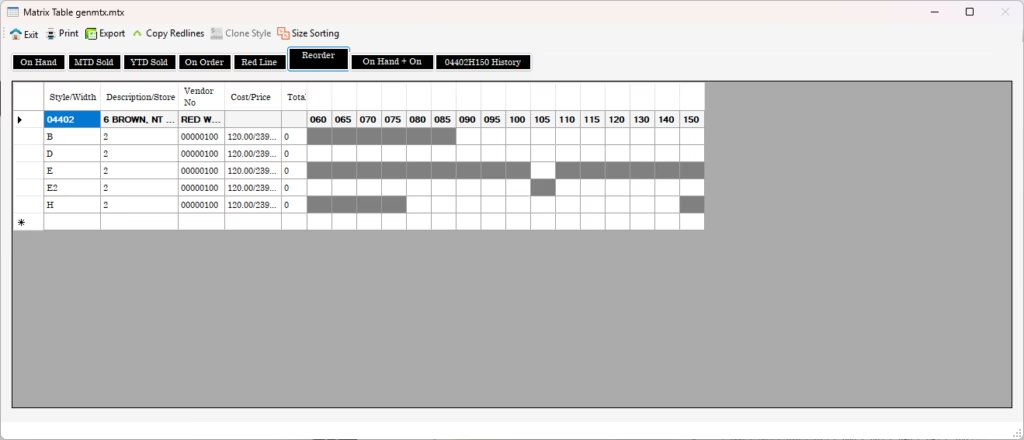
Use this when you want to adjust reorder points for one style at a time.
- Go to Modules → Inventory.
- Pull up the style you’re interested in.
- Click Matrix (Power Matrix). This shows your on-hand quantities.
- Switch to the Red Line tab.
If the style already has red lines set, you can leave them as they are or overwrite them with whatever values you want. Use Tab to move between the quantity columns and adjust each one until you’re satisfied.
When you’re done, simply click anywhere else on the screen to commit the values. Your red line quantities for that style are now set.
To confirm, exit back to the inventory screen and click into the Red Line field at the bottom. The values you just set will be displayed there.
Method 2: Set red lines for an entire vendor
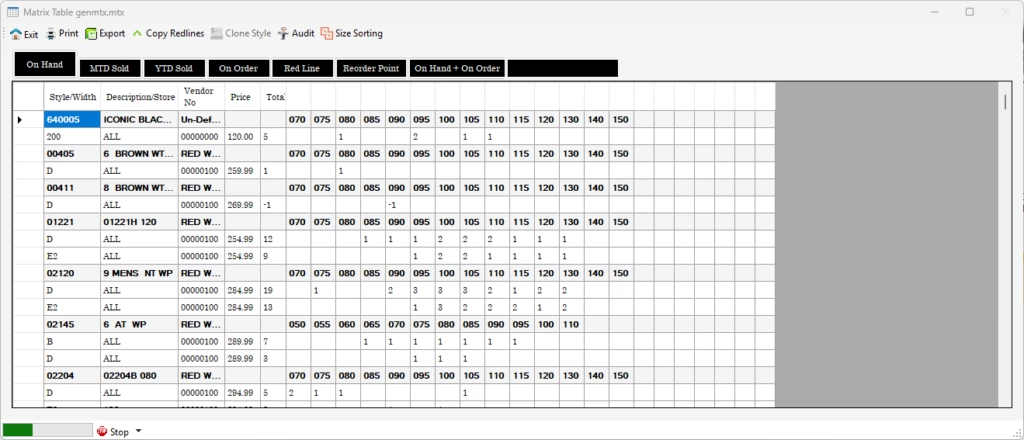
Use this when you want to build red lines across many styles from the same vendor at once. This method runs through a report.
- Go to Reports → Inventory Reports → Physical Listing.
- Choose how to filter the report: by department, style, or vendor number. For this method, select vendor number.
- Double-click the vendor field and type in the vendor.
Remember: any yellow field in WinSale is clickable. Double-click it to enter or look up a value.
- Check Use Matrix Format.
- Click OK.
WinSale displays on-hand quantities for the entire vendor — including styles with zero on hand, since the report was run that way — in the same Power Matrix format as before.
From here, switch to the Red Line tab and build the red lines for the whole vendor. You can select multiple styles and type quantities into all of them. When you quit out of the screen, every quantity you entered is saved automatically.
Once your quantities are set, exit the screen and your red lines are in place. WinSale will now use these reorder points to flag low stock for the styles you’ve configured.
If you have any questions about red line quantities or anything else in WinSale, reach out to our support team.
- Support email: support@winsale.net
- Phone: 843-476-4767


