This guide covers how to create an industrial account (called a major account in WinSale) and how to attach employees to it. Major accounts let you set up a company once, with its own rules for purchase orders, invoicing, subsidies, tax exemption, and discounts, and then quickly attach any employee who comes in.
A major account can be created from the Point of Sale screen or from the Profiles menu. This guide uses the Profiles menu because it allows for a more detailed setup.
Step 1: Create the account record
- From the main WinSale screen, go to Profiles → Customer Profile. The screen opens pre-selected as New.
- Give the account a name (the company name, or in this case the industrial account), along with location and zip code.
- Click Save to create the account.
Step 2: Flag it as a major account
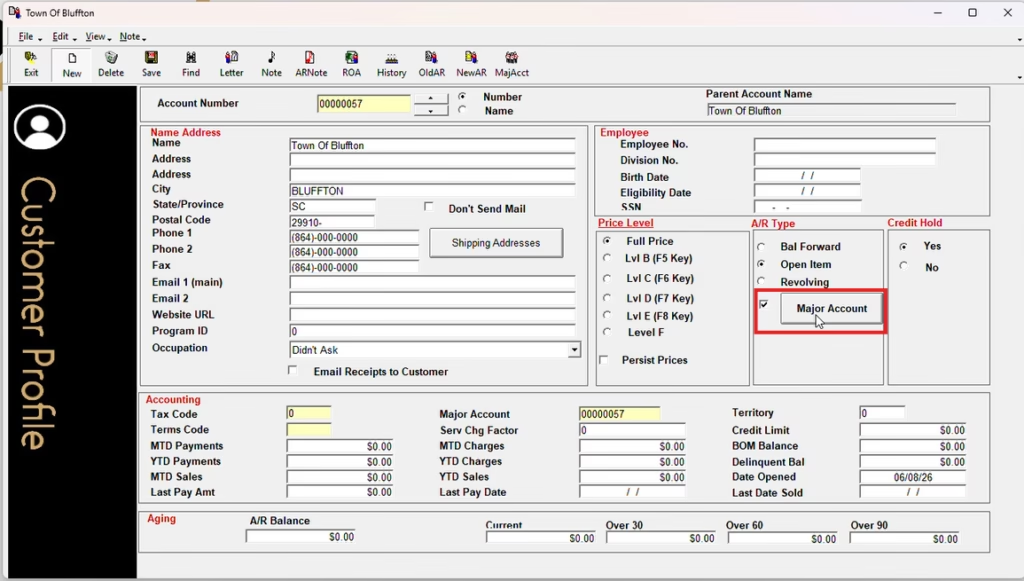
- Under AR Type, check Major Account.
- Click Save again.
- Click the Major Account button. This opens the major account module.
At this point the major account technically already exists and you could start assigning people to it. The steps below show the additional options available so you can set the account up fully.
Step 3: Set the major account options
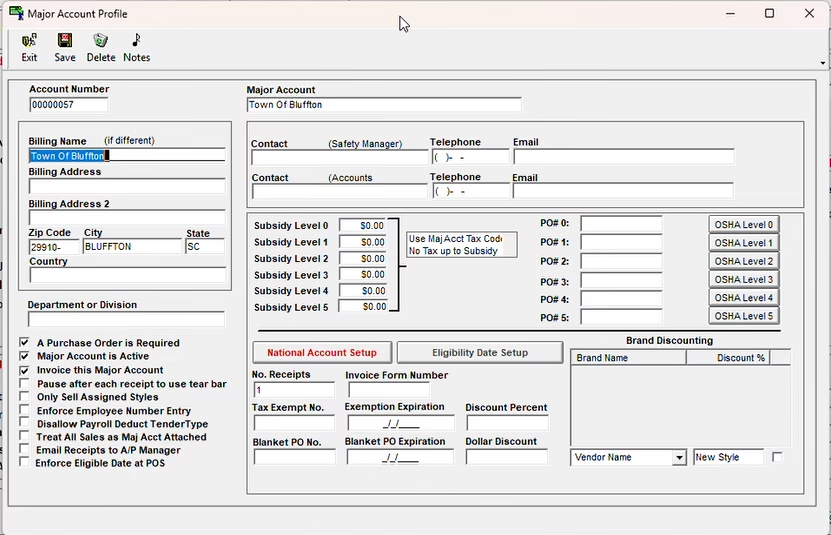
The major account profile note section lets you go deeper into the account’s configuration. Common options include:
- Require a purchase order on the account.
- Mark the account as active.
- Invoice the major account.
- Sell only assigned styles to the account.
- Enforce employee number entry.
- Email receipts to the accounts payable manager after every receipt is created.
- Enforce eligibility date, so employees limited to a specific dollar amount or quantity (for example, once per year) are held to that limit.
Step 4: Set up subsidy levels
If the account has different subsidy levels for different departments or categories of employees, you can create those levels here and assign them accordingly.
For example, you can create several subsidy levels and make them all no tax up to subsidy. With that rule, an employee on a given subsidy level pays no tax up to their subsidy amount, and only pays tax on anything above it.
Example: if an employee is on a subsidy level set to $100, the first $100 is tax free. If they spend $101, they pay tax only on the $1 over the $100 subsidy.
You can also set the number of receipts to print. Three is a common choice, so the customer keeps one, the company gets a copy, and you retain a copy for your records.
Step 5: Tax exemption and discounts
If the account is tax exempt (for example, a government establishment), enter the exemption number and exemption expiration.
Not every agency will provide an exemption number, and that’s fine to fill in with a placeholder if needed. The key field WinSale requires for the exemption to take effect is the expiration date. Without it, the exemption will not apply.
If the account receives a set discount, you can apply it here. For example, the Town of Bluffton might get an automatic 10% discount on everything they buy. Once set, that discount applies to every purchase on the account.
When you’re finished, click Save and exit. The major account now exists with all of its subsidy levels and rules. Anyone who shows they work for that company can be attached to it and receive its benefits.
Step 6: Attach an existing employee to the account
To attach an existing customer to a major account:
- Go to Modules → Point of Sale and pull up the customer (for example, John Smith).
- Click Modify.
- In the Major Account prompt, start typing the company name (for example, Town of Bluffton).
The employee is now attached to the major account. You’ll see their major account shown in the top-right corner of the screen. They are automatically placed on the default subsidy level, receive the account’s discount, and follow its subsidy tax rule (for example, the first $100 tax free, anything over $100 taxable).
Adjusting an employee’s subsidy level
If the employee belongs to a department with a higher subsidy threshold, press F11 to bring up their customer profile and adjust the subsidy accordingly. For example, you can move them to a higher subsidy level (such as $175) and click Save. The same discount percentage and subsidy rule continue to apply at the new level.
Step 7: Attach a new employee on the fly
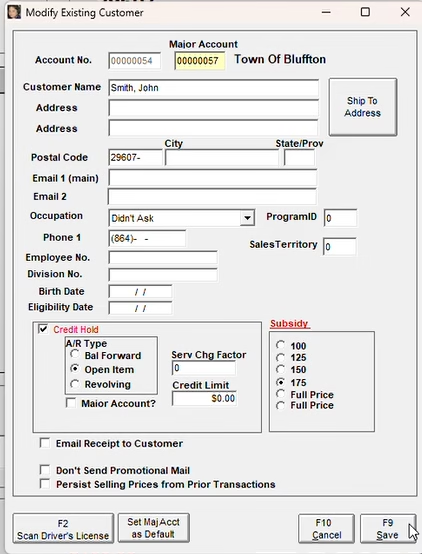
When someone new comes in who works for the major account:
- Type their name and click New.
- Use the Major Account button and type in the company name (for example, Town of Bluffton).
That’s all it takes. By entering their name and attaching them to the major account, they automatically belong to the company, with a subsidy level, discount percentage, and subsidy rule already in place.
That’s it
This is a basic overview of what major accounts can do. Once a major account is created, any employee who comes in with a voucher or identification showing they work for that company is an easy add at the Point of Sale and immediately receives the account’s benefits.
If you have any questions about industrial accounts or anything else in WinSale, reach out to our support team.
- Support email: support@winsale.net
- Phone: 843-476-4767


