Welcome to the WinSale onboarding series. This guide covers how to create a salesperson profile. Salesperson accounts let you track each staff member’s clock-ins and sales.
If you’re onboarding from another point of sale system, you most likely won’t need this step. WinSale can import your salespeople from your old system. This guide is for fresh setups, whether you’ve never had a point of sale system before or you’re just starting up.
Create a salesperson profile
- From the main WinSale screen, go to Profiles → Salesperson.
- Click New.
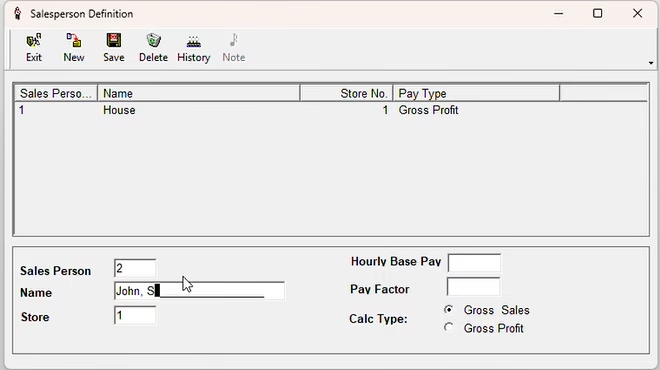
WinSale automatically assigns the next number in sequence. For example, if salesperson number 1 is already the house account, clicking New creates salesperson number 2.
You don’t have to follow that numbering. You can use your own schema with one, two, or three digit salesperson numbers, whatever works best for your store.
Enter the name
Type in the salesperson’s name. How you format names is entirely up to you, there’s no strict rule in WinSale. You can use:
- Last name, first name
- First name, last name
- First name only with a single-letter last initial
As with other profiles, you can fill in as much or as little additional information as you like. The only thing you truly need is a name.
Save
Once you’ve entered the name, click Save. The salesperson now exists in your point of sale, so you can track their clock-ins, their sales, and anything else you need.
That’s it
Creating a salesperson is quick and flexible. Set your own numbering and naming conventions, enter a name, and save.
If you have any questions about salesperson accounts or anything else in WinSale, reach out to our support team.
Phone: 843-476-4767
Support email: support@winsale.net
Press the New button at the top and type in a new salesperson’s number and name at the bottom of the screen
Press Save when you are done


