Welcome to the WinSale onboarding series. This guide covers how to track your purchase orders and check whether they were received. If you have a question about a specific PO, even one from a year ago, the Purchase Order Status report makes it easy to find out whether it was ordered and received.
Open the Purchase Order Status report
From the main WinSale screen, go to:
Reports → Vendor → Purchase Order Status
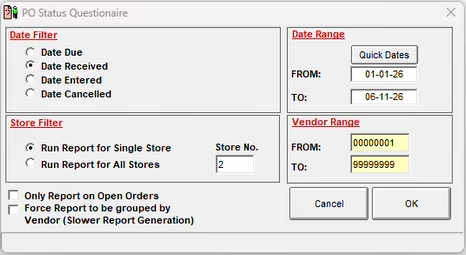
Choose how to search
The Purchase Order Status screen lets you decide how to search for your data. You can search by:
- Date due
- Date received
- Date entered
- Date cancelled
You also set your date range, your store, and your vendor range.
For most customers, you’ll search one of two ways: by date entered if you’re not sure whether the PO was received, or by date received if you know it came in but need the other details.
For example, you might search by date entered, set the range to the last six months, choose your store number, and run it for all vendors. You don’t have to limit the report to open orders, leaving that filter off shows everything ordered and received for the store in that range. The date range is flexible: a single day, a week, a month, or a year ago all work the same way.
When your options are set, click OK. WinSale prompts for the printer; click OK again to run the report.
Reading the report
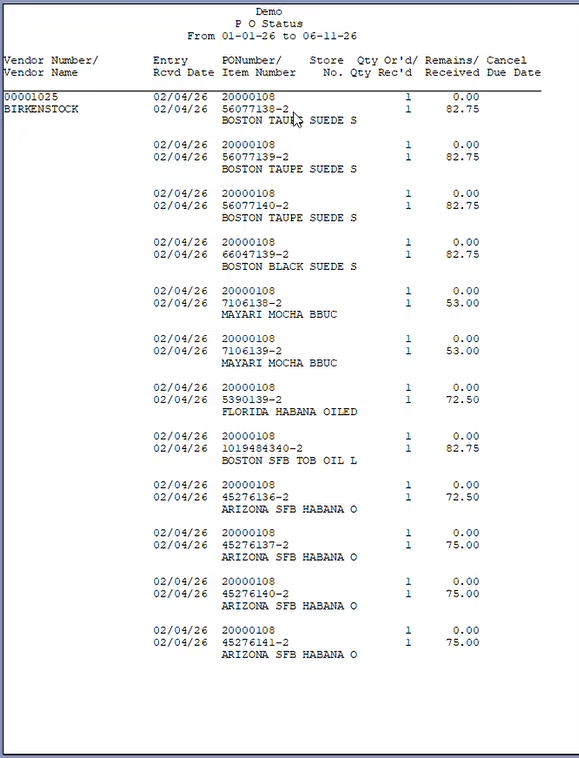
The report header shows the store name and the date range. The report itself may look detailed, but it’s straightforward and works on an item-by-item basis. For each line you’ll see:
- Vendor number and vendor name
- When the PO was entered
- The PO number
- The item number and description
- Quantity ordered
- Quantity received
- Anything remaining to be received
- The cost value of the item
Find a specific item
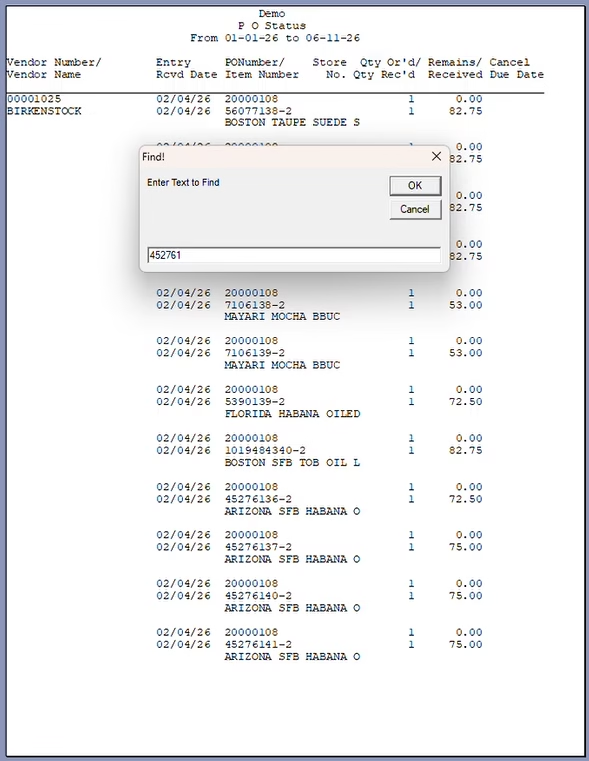
If you’re unsure about a specific item on a PO, click the Find button at the top and search for the item number. WinSale highlights the matching line so you can quickly confirm whether it was received.
Vendor totals
At the end of each vendor’s section, the report totals that vendor’s activity: how many items were ordered, how many were received, the cost in both cases, and any balance still to be received. If you ran the report for multiple vendors, it repeats this for each one.
That’s it
The Purchase Order Status report is a quick way to track down old POs and answer outstanding questions, whether a specific vendor or PO was received, ordered correctly, or anything else you need to confirm.
If you have any questions about purchase order status or anything else in WinSale, reach out to our support team.
- Support email: support@winsale.net
- Phone: 843-476-4767


