Applies to
- Synology NAS running DSM 7.1.1
- Docker / Container Manager
- RustDesk Server Pro
hbbs(ID / rendezvous server)hbbr(relay server)
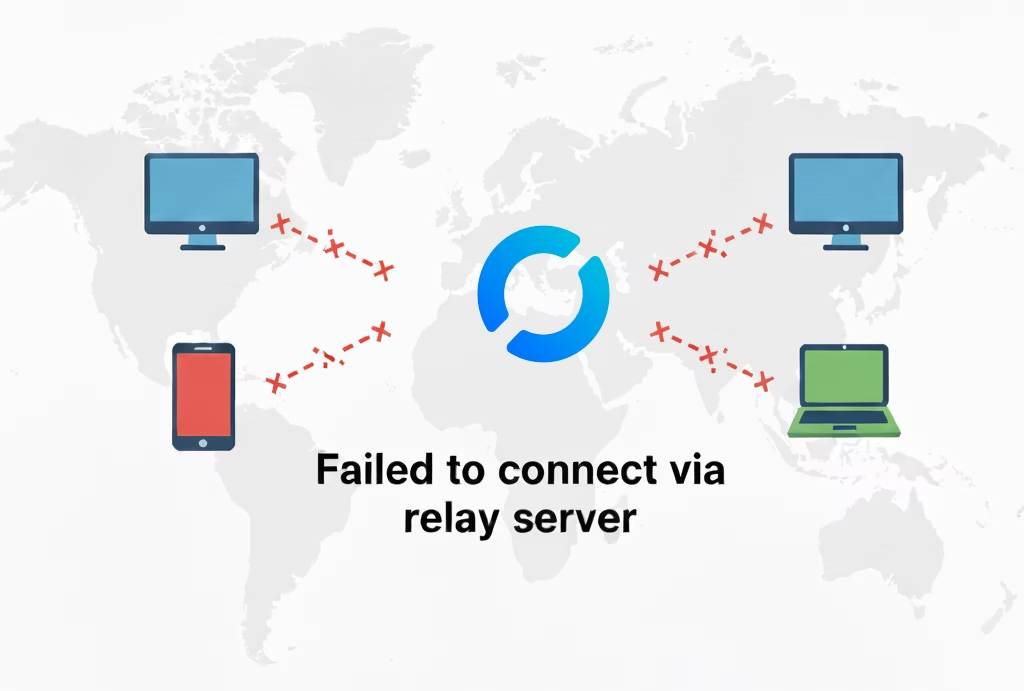
Summary
If RustDesk clients intermittently fail with “Failed to connect via relay server”, even though ports are open and some connections work, the most common cause is that hbbs is advertising the wrong relay address.
On Synology DSM, this often happens because the relay server address is hard-coded at container startup and cannot be changed after the container is created.
Symptoms
You may observe one or more of the following:
- Clients show “Failed to connect via relay server”
- Some devices connect successfully, others never do
- New installs behave the same as existing ones
- Direct connections sometimes work, relay connections fail
- Relay port appears open when tested externally
Root Cause
hbbs is advertising the relay server as:
127.0.0.1:21117
This causes external clients to attempt relay connections to their own local machine, which always fails.
On DSM 7.1.1:
- The Docker UI does not allow editing the container command after creation
- Environment variables do not override the relay server
- The RustDesk Pro web UI does not override the container startup arguments
Resolution
You must recreate the hbbs container with the correct relay server specified at startup.
Step-by-Step Resolution
Step 1 — Verify relay port is reachable externally
From a remote Windows PC:
Test-NetConnection yourhost.example.com -Port 21117
Expected result:
TcpTestSucceeded : True
If this fails, fix router port forwarding and DSM firewall rules before continuing.
Step 2 — Check what relay server hbbs is advertising
SSH into the NAS and run:
sudo docker logs hbbs --tail 200 | grep -i relay-servers
Correct
relay-servers=["yourhost.example.com:21117"]
Incorrect
relay-servers=["127.0.0.1:21117"]
If you see 127.0.0.1, continue to Step 3.
Step 3 — Recreate hbbs with the correct relay server
⚠️ Do not delete volumes or data.
3.1 Stop and remove the existing hbbs container
sudo docker stop hbbs
sudo docker rm hbbs
3.2 Recreate hbbs with the relay server specified
Use the same volume path you previously used for RustDesk data.
sudo docker run -d \
  --name hbbs \
  --network host \
  --restart unless-stopped \
  -v /path/on/nas/rustdesk:/root \
  rustdesk/rustdesk-server-pro:latest \
  hbbs --relay-servers yourhost.example.com:21117
Important
- Keep
--network host - Do not use
https:// - Use your public hostname or public IP
3.3 Restart hbbr
sudo docker restart hbbr
Step 4 — Verify the fix
sudo docker logs hbbs --tail 80 | grep -i relay-servers
Expected:
relay-servers=["yourhost.example.com:21117"]
At this point, relay connections should begin working immediately.
Step 5 — Verify RustDesk Pro license status
License issues can cause unstable or partial functionality.
sudo docker logs hbbs --tail 200 | egrep -i "license|License"
Expected:
License OK
If you see messages indicating the license is in use on another machine, complete the license migration process in the RustDesk Pro portal and restart the containers.
Step 6 — Confirm relay server health
sudo docker logs hbbr --tail 80
You should see:
- Listening on
tcp :21117
Optional socket check:
sudo ss -tulpen | egrep '21115|21116|21117|21114'
Client Configuration Notes
Custom Server Settings
- Host:
yourhost.example.com - Key: Your RustDesk public key
- API: Use
http://orhttps://only if your API endpoint supports it
API Scheme Test
curl -I http://yourhost.example.com:21114
curl -kI https://yourhost.example.com:21114
Use the scheme that returns a valid response.
Common Mistakes
❌ Setting relay server via environment variables
❌ Expecting the Pro web UI to override container startup
❌ Using 127.0.0.1 or LAN IP as relay server
❌ Adding https:// to relay server field
❌ Editing an existing container instead of recreating it
Recommended Best Practice
Use docker-compose for repeatable deployments:
services:
  hbbs:
    image: rustdesk/rustdesk-server-pro:latest
    container_name: hbbs
    network_mode: host
    command: hbbs --relay-servers yourhost.example.com:21117
    volumes:
      - /path/on/nas/rustdesk:/root
    restart: unless-stopped

  hbbr:
    image: rustdesk/rustdesk-server-pro:latest
    container_name: hbbr
    network_mode: host
    command: hbbr
    volumes:
      - /path/on/nas/rustdesk:/root
    restart: unless-stopped
Verification Checklist
✔ Relay port reachable externally
✔ hbbs advertises public relay address
✔ License status OK
✔ Containers running in host mode
✔ Relay connections succeed consistently


