This document describes the procedures used to perform a physical inventory in WinSale.
NOTE: The order in which Help files are located in this chapter is the order you should proceed when working with Physical Inventory.

Inventory Variance Overview Steps
Note: We recommend backing up your inventory prior to starting any inventory. Also, you may want to print an Inventory Value by Vendor report (Reports – Inventory – Inventory Value By) to understand the valuation of your inventory before changing values.
- Delete Variance Files – This is the first step and should be done once upon starting a new inventory variance. This step ensures that you will be starting a new inventory cycle and empties the buckets of prior inventory variances. You should also take this opportunity to erase your data collector (if you are using one) so that no inventory numbers remain from prior inventory taking sessions.
Note: Magnum Software recommends using small chunks of inventory collection rather than one large collection. This way you can take advantage of the control batch ID numbers for better stock taking control. With small batches you can delete a batch and print separate batch reports. Always remember to erase the data collector unit after successfully reading in each inventory batch.
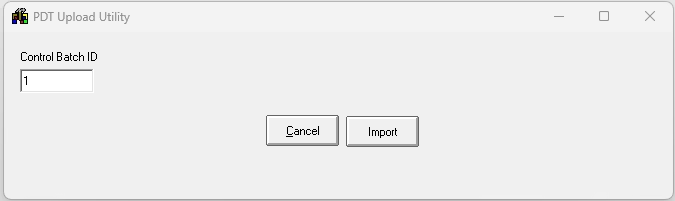
- Read in the data collector using the PDT upload utility.
- If not using a data collector use the inventory variance dialog.
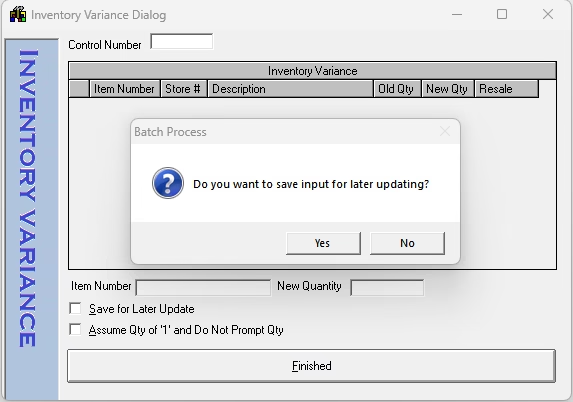
- If using a data collector, erase the data collector unit after verifying that the data was read in successfully. You can verify that the data read in successfully by running either the Detail Report by Control Number or the Control Number Summary Report.
- Repeat steps 5 through 6 as many times as needed until you have scanned all of your inventory.
- Update inventory from scanned items.
This step will update your inventory to match what was scanned in steps 5 and 6. This, however, does not update any items that were not scanned. - Zero un-scanned inventory
This function will compare what you scanned against the inventory and any items that were not scanned will have the quantity zeroed out. This function uses ranges so that you can do partial inventory. In other words you may decide to just inventory a certain department or vendor line. The zero of un-scanned inventory allows for this by just resetting anything in that department or vendor line that was not scanned to quantity of 0. - The final step is to print the variance report which will list everything that was changed either by the scanning or by the zeroing of un-scanned inventory. Any items that were not found while scanning will be marked with an asterisk and will be located on the top of the report.
Print Variance Report
The Inventory Variance report shows inventory that has been added to or subtracted from inventory. This report may be run to get a listing of changes in quantity levels put into the Inventory Variance screen or updated with a hand-held data collector. The report will duplicate what was viewed while putting in the actual variances; that is; it will show the item number, description, the original inventory quantity, the new inventory quantity and the percentage variance. (At the time of this writing the general ledger will not be updated automatically, therefore you will need to make general ledger entries directly.)
NOT FOUND IN INVENTORY – Automatic Export
After the variance report is generated, any items marked as NOT FOUND IN INVENTORY are automatically saved to a separate text file for later processing.
• The file is saved to the Desktop
• Filename format: NOTFOUND-YYYYMMDD-HHMMSS.txt
This file contains all UPCs or item identifiers that were scanned during physical inventory but do not exist in your current WinSale inventory file.
Using the NOT FOUND File with Quick PO
The NOTFOUND text file may be imported using:
Purchase Order Module -> Quick PO -> Import File
Importing this file allows WinSale to locate unknown to you UPCs and gives you the opportunity to create inventory items on the fly, resulting in the most accurate inventory possible after a physical count.
If you still have questions, don’t hesitate to reach out to us via the phone: 843-476-4767 or email: support@magnumsoftware.com


